Related Links
Integrate Handy Backup with IDrive® e2
Handy Backup is a backup software that allows you to backup files, folders, databases, and entire systems to local drives, network storage, and cloud platforms. Integrating Handy Backup with IDrive® e2 lets you store your backups in the cloud, ensuring high availability, redundancy, and protection for your critical data.
Prerequisites:
Before you begin, ensure the following:
- An active IDrive® e2 account. Sign up here if you do not have one.
- A bucket in IDrive® e2. See how to create a bucket.
- Valid Access Key ID and Secret Access Key. Learn how to create an access key.
- A valid Handy Backup installation.
Configure IDrive® e2 with Handy Backup
- Launch Handy Backup.
- Click New to create a new backup task.
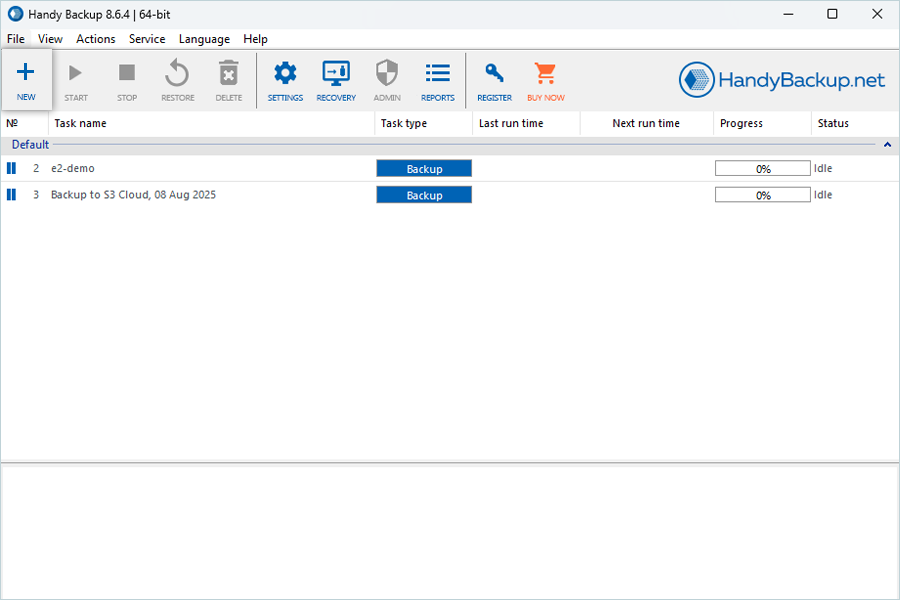
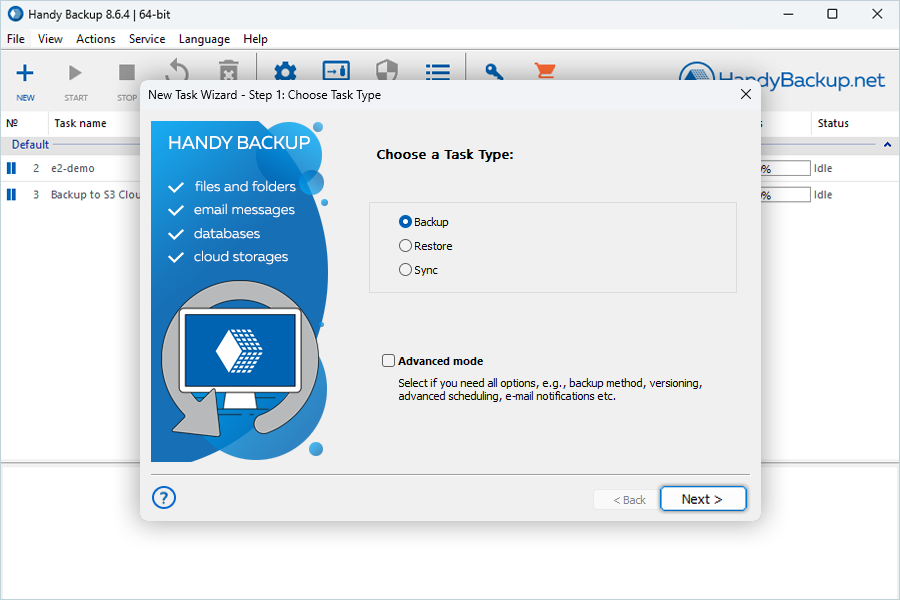
- Select Backup and click Next.
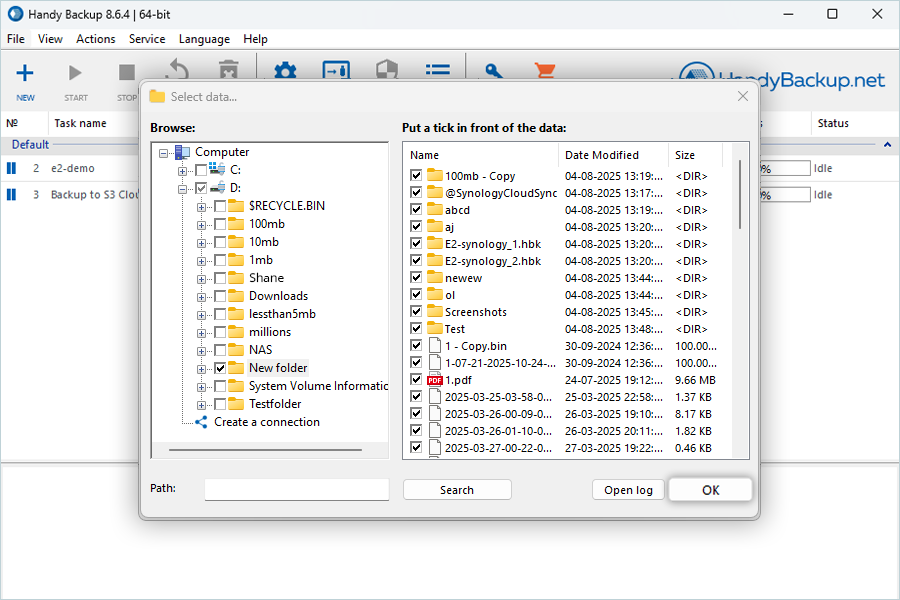
- Select the source folder from your local system and click OK.
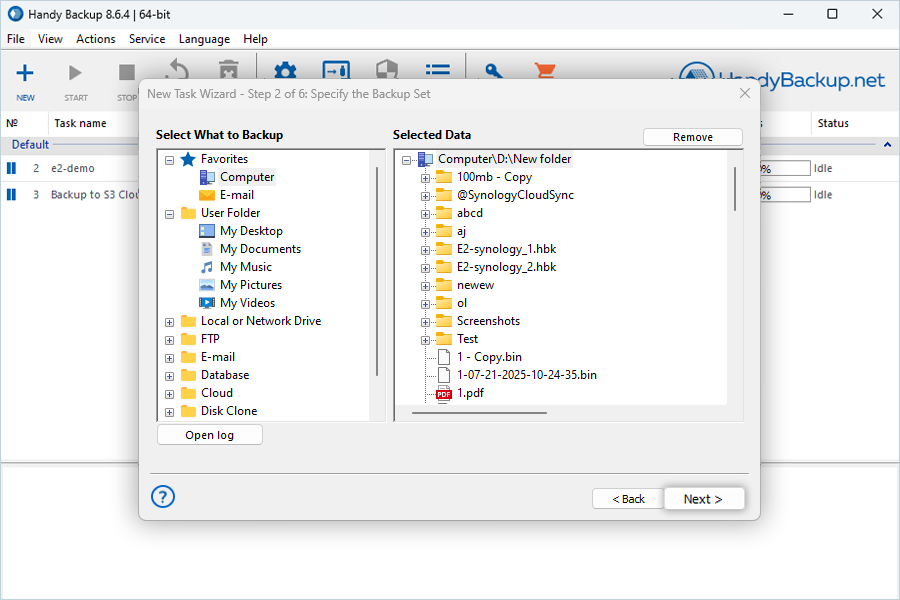
- After confirming the source folder, click Next.
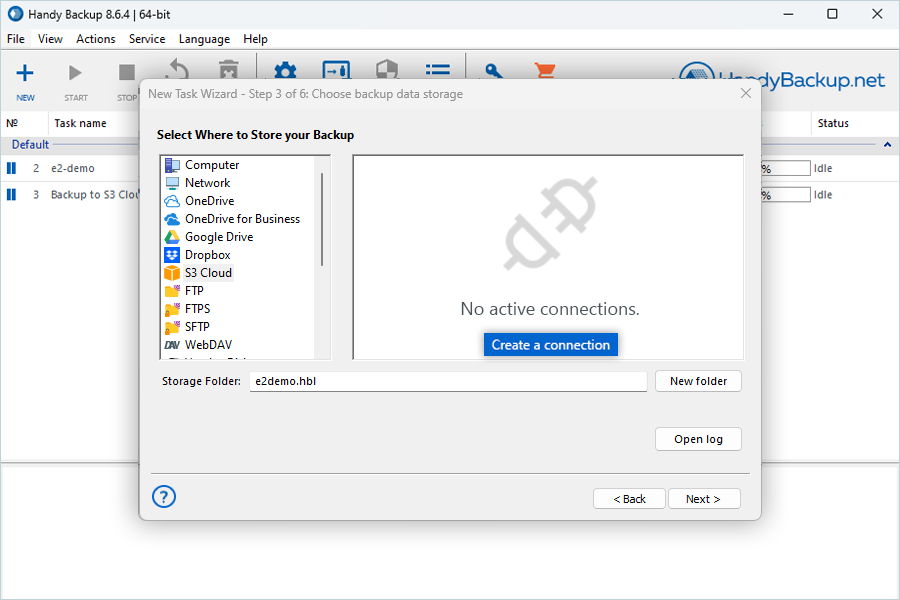
- Select S3 Cloud as the destination and click Create Connection.
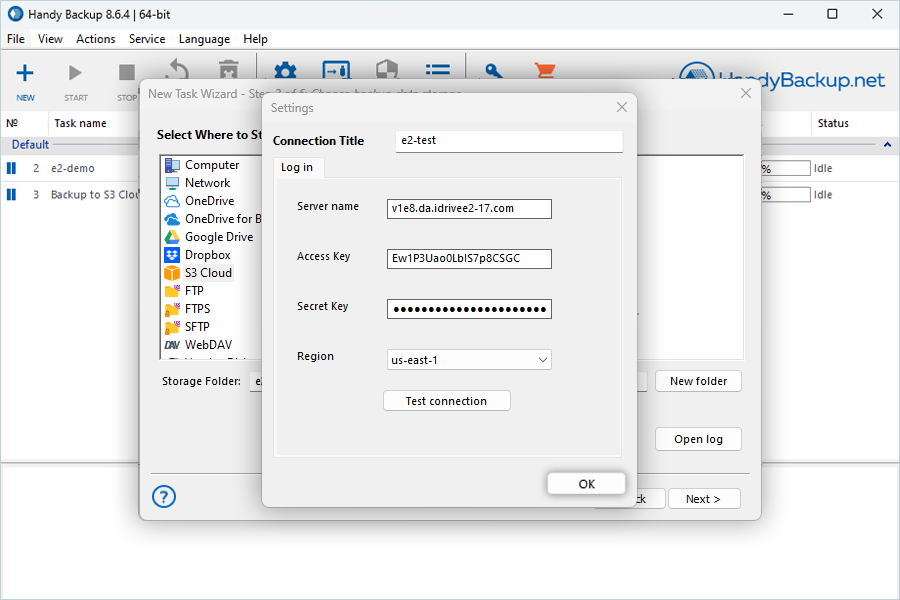
- Enter the backup name as Connection Title.
- Enter your IDrive® e2 endpoint as Server name.
- Enter your IDrive® e2 Access Key as Access Key.
- Enter your IDrive® e2 Secret Key as Secret Key.
- Keep us-east-1 as the default region and click Test Connection.
- Once the test connection is successful, click OK.
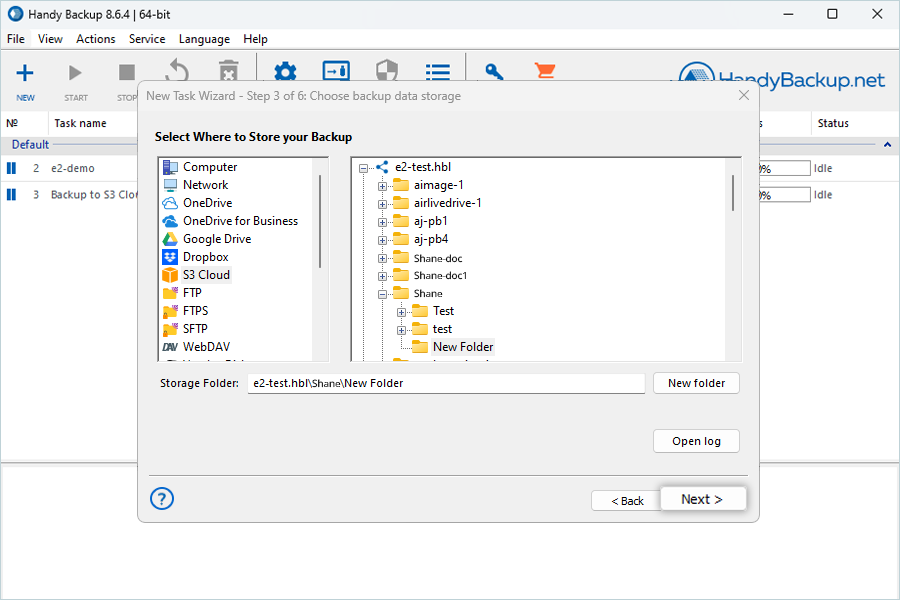
- Select your IDrive® e2 bucket from the list as the destination.
- Click New Folder to create a folder under the bucket for storing backups.
- Click Next.
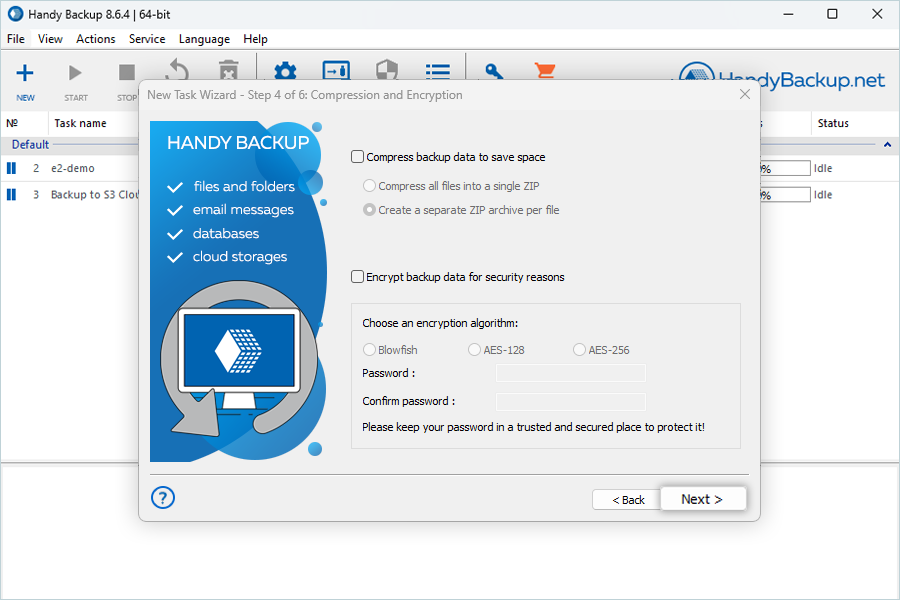
- Enable Encryption and/or Compression if required, then click Next.
- Schedule the backup if needed, then click Next.
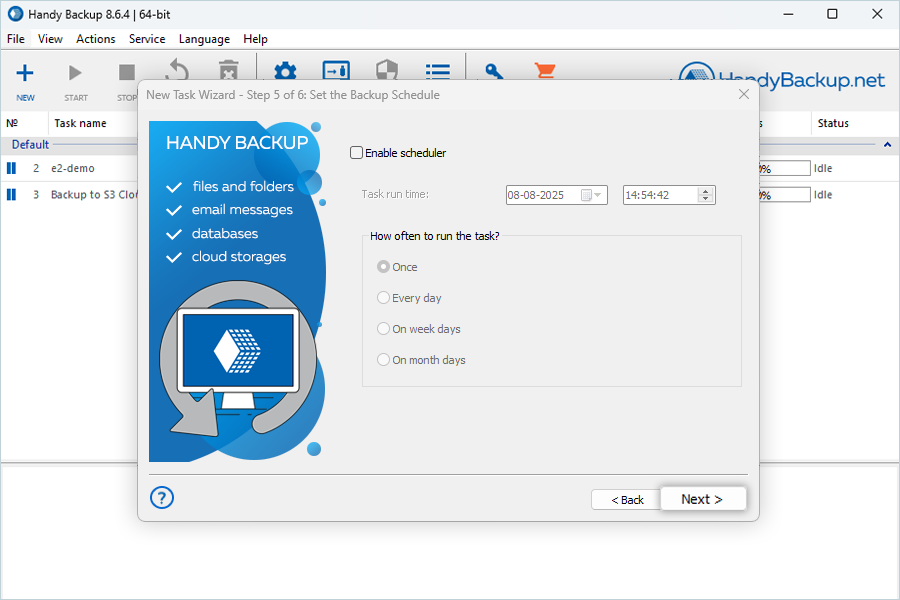
- Enter the Backup Task Title and click Finish.
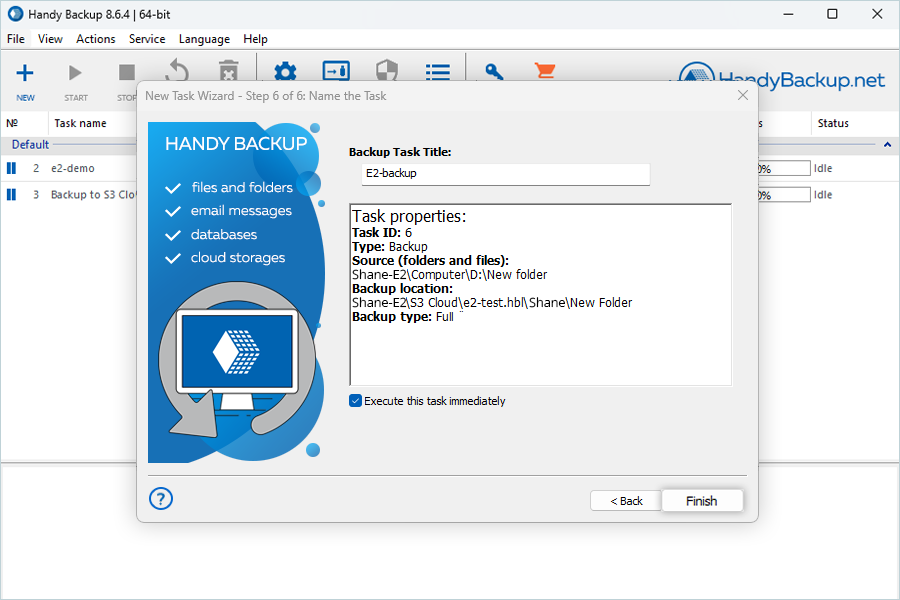
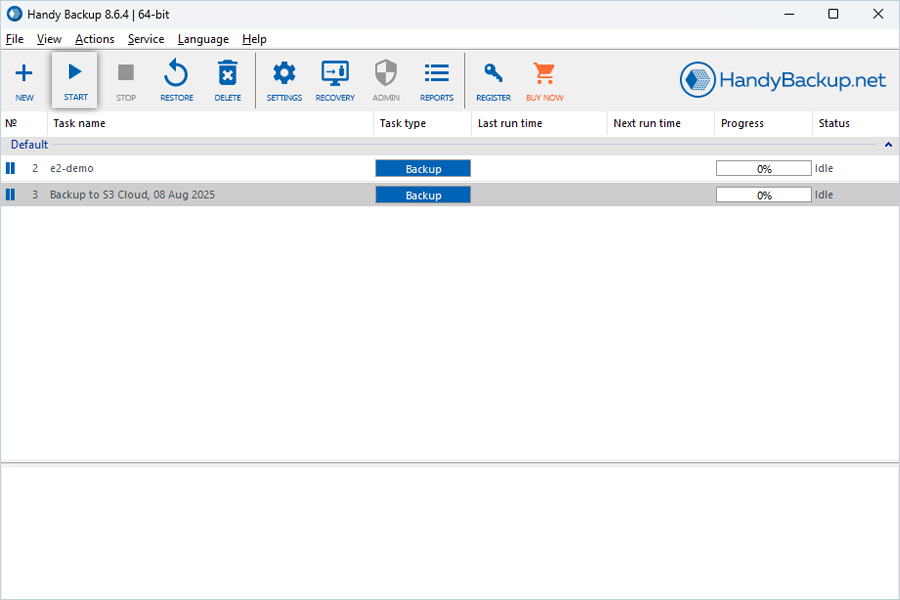
Note: To start the backup immediately, select Execute Task immediately before finishing. - Select the backup job and click Start to begin the backup process.
Note: IDrive® e2 does not allow creating public buckets. Only public buckets created before 21st July, 2026 are available.